
Cloud applications
Enhanced Video Management System
A cloud application for managing surveillance cameras spread across many sites
• Sends only the data you need, so video monitoring stays affordable even over mobile networks
• Simple, rugged equipment for stable operation
• Replaces routine work with surveillance cameras, improving efficiency and addressing labor shortages
Offered in Japan. Specifications and certifications are for use in Japan.
SituationsUse cases
Use cases that feature this product. Each link opens the products for that use case.
FeaturesFeatures
A cloud application for managing surveillance cameras spread across many sites
An application service for managing surveillance cameras spread across many sites in one place
- Sends only the data you need, so video monitoring stays affordable even over mobile networks
- Simple, rugged equipment for stable operation
- Replaces routine work with surveillance cameras, improving efficiency and addressing labor shortages
Enhanced Video Management System overview
Retrieve important video linked to alerts remotely and manage many sites centrally with less effort
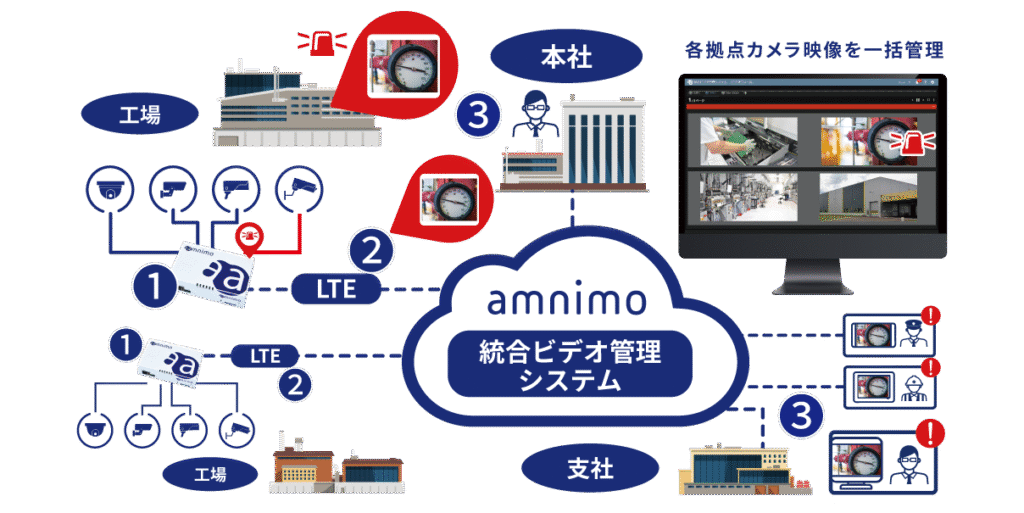
- The gateway on site records and monitors camera data continuously
- The gateway sends only the information you need, such as video linked to alerts
- View remotely from a PC or smartphone
FeaturesFeatures
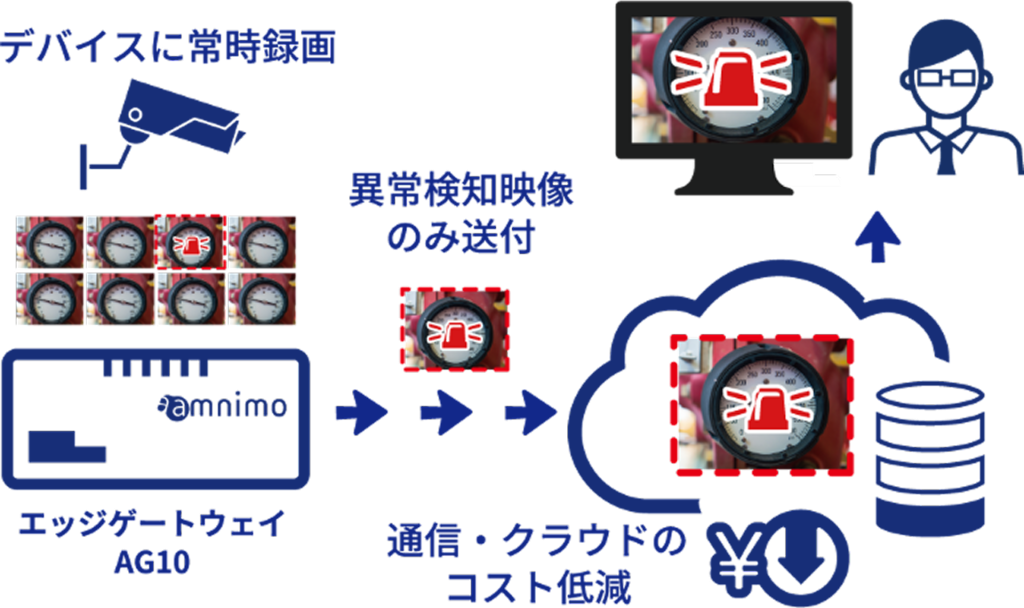
Affordable video monitoring even over mobile networks
- Records continuously on the local device and sends only the video you need to the cloud
- Reduces data traffic, so you can view video remotely at low cost even over mobile networks
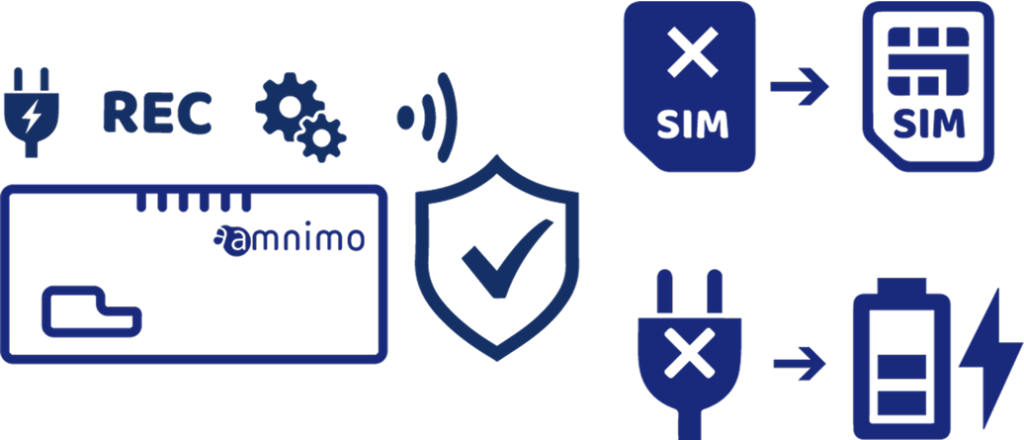
Stable operation with a rugged all-in-one device
- A single Edge Gateway (Indoor) AG10 supplies power to cameras and handles recording, processing, and communication
- Automatic SIM failover keeps you connected through mobile carrier outages
- Protection against momentary power interruptions keeps the system running stably outdoors and in other places with unstable power
Replaces routine work with surveillance cameras, improving efficiency and addressing labor shortages
- Camera patrol automates security and inspection rounds
- Alert notifications for fast emergency response
- Motion detection finds images from the times when there was movement

Existing on-site VMS servers become accessible remotely
Nx Bridge: Install a server running Nx Witness and a relay device on site and connect them to the Enhanced Video Management System in the cloud. This service lets you view real-time video and retrieve recorded data from anywhere over the internet.
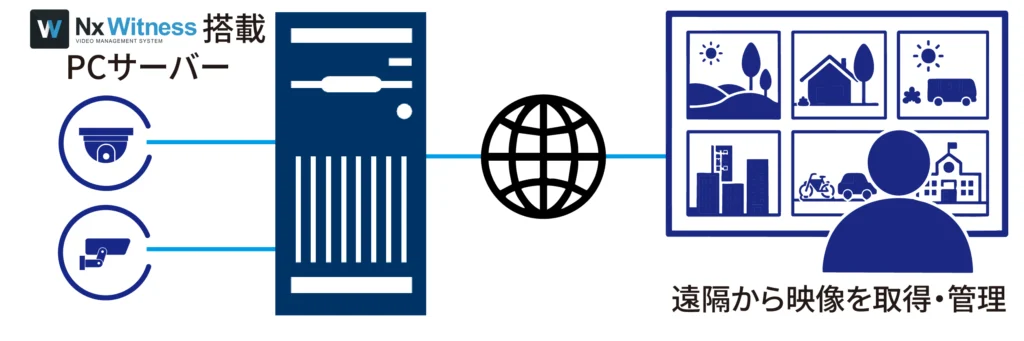
*For details, see the Nx Bridge page
SystemExample configurations
System configurations and integrations A cloud application for managing surveillance cameras spread across many sites An applica… View example configurationsCasesCase studies for this product
-
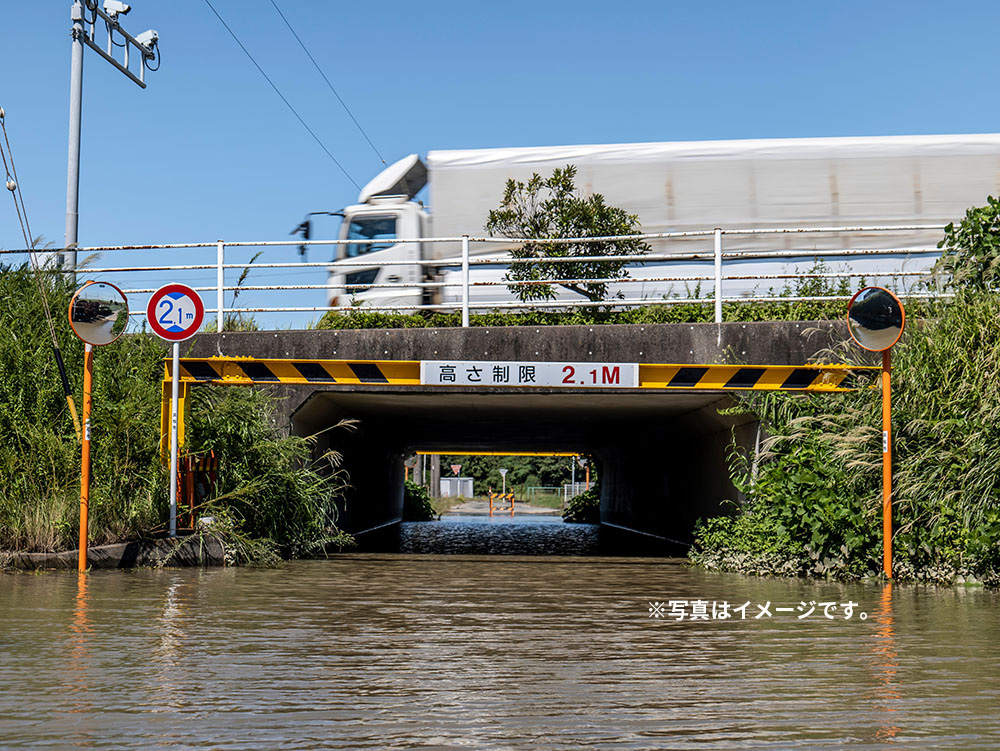 Takaoka City: Underpass flooding monitoring solution
Road Maintenance Division, Urban Development Department, Takaoka City; TAKAOKA CABLE NETWORK CO., LTD.; and SANGIKYO CORPORATION Enhanced Video Management SystemAG20
Takaoka City: Underpass flooding monitoring solution
Road Maintenance Division, Urban Development Department, Takaoka City; TAKAOKA CABLE NETWORK CO., LTD.; and SANGIKYO CORPORATION Enhanced Video Management SystemAG20
-
 Toshima City: Disaster preparedness and crisis management camera solution
Disaster Prevention Crisis Management Section, General Affairs Department, Toshima City Enhanced Video Management SystemAG20
Toshima City: Disaster preparedness and crisis management camera solution
Disaster Prevention Crisis Management Section, General Affairs Department, Toshima City Enhanced Video Management SystemAG20
-
 Trial of a thermal camera intrusion detection system around an airport perimeter shows results: More efficient security and monitoring, and higher security quality
A regional airport Enhanced Video Management SystemFuel Cell Surveillance Camera Solution
Trial of a thermal camera intrusion detection system around an airport perimeter shows results: More efficient security and monitoring, and higher security quality
A regional airport Enhanced Video Management SystemFuel Cell Surveillance Camera Solution
ColumnsRelated articles
-
 Video solutions (security)
How to reduce the “hidden costs” of a security camera system while making it more efficient
Nov 28, 2023 -
 Video solutions (security)Video solutions (maintenance)
Theft prevention at solar power facilities: Challenges, solutions, and key points for introducing surveillance cameras
Nov 28, 2023 -
 Security cameras
Trends in surveillance camera systems: Edge recording vs. cloud recording
Mar 22, 2023 -
 Security cameras
Security patrols and how to automate them
Mar 20, 2023
SpecificationsSpecifications
Showing all items.
| Function | Description | Remarks | ||
|---|---|---|---|---|
| Administration | User management | Role management | Manage user access rights. | There is no limit on the number of registered users. |
| Common settings | Thumbnail update interval | Set how often camera thumbnail images are uploaded to the Enhanced Video Management System. | Configurable from 10 to 60 minutes in 1-minute steps. The same setting applies to all cameras registered to the tenant. | |
| Live playback duration (Cloud mode) | Set the maximum continuous playback time for live video in Cloud mode. Playback stops automatically when the time is up. | Configurable from 1 to 60 minutes in 1-minute steps. The same setting applies to all cameras registered to the tenant. | ||
| Direct connection duration (Direct mode) | Set the maximum continuous connection time in Direct mode, which connects to the device peer to peer (P2P). The connection ends automatically when the time is up. | Configurable from 1 to 60 minutes in 1-minute steps. The same setting applies to all cameras registered to the tenant. | ||
| Notification rules | Configure notifications to users. Users are notified by the specified method when the specified trigger occurs. | Events can be used as triggers, and email as the notification method. You can create up to 10 notification rules. Each tenant can send up to 2,000 emails per month. | ||
| Camera details | Camera list | Camera search | ||
| Tree view | Show cameras in a tree. There are three view modes: standard, by device, and list. | There is no limit on the number of devices or cameras you can connect. | ||
| Report creation | Create reports with camera thumbnail images and snapshots attached. You can create a report from an event. | |||
| Camera settings | General settings | |||
| Fisheye correction settings | ||||
| Advanced settings | ||||
| Camera status | ||||
| Gateway settings | Operations (enable, restart, camera discovery, and more) | |||
| Detailed view | ||||
| PoE control | ||||
| Cloud mode | Thumbnail view | Shows thumbnail images uploaded to the Enhanced Video Management System. There are three view modes: single, 9-image grid, and list. | Thumbnail images are kept for 30 days for amnimo Portable and 365 days for other cameras. | |
| Thumbnail slideshow | Play thumbnail images in sequence. You can change the playback speed. | |||
| Timeline bar | Shows thumbnail update times, event times, and video clip capture times. | |||
| Calendar view | ||||
| Snapshot capture | Create a still image at a specified date and time from video recorded on the edge gateway, and save it to the Enhanced Video Management System | Each camera has its own storage area. When it is full, the oldest data is overwritten automatically. The default size is 1 GB. To expand it, contact amnimo. The storage area size is the same for all tenants under the tenant tree. | ||
| Video clip capture | Cut out video for a specified period from video recorded on the edge gateway, and save it to the Enhanced Video Management System. Each video clip can be up to 60 minutes long. | |||
| Time-lapse creation | Create a time-lapse video from thumbnail images and save it to the Enhanced Video Management System. | |||
| Live video playback | Watch live camera video via the cloud. Audio is available for amnimo Portable only. | Free for up to 30 hours per camera per month. If you need more playback time, contact amnimo. Video is delivered with the HLS (HTTP Live Streaming) standard. | ||
| Fisheye correction | Play video from 360-degree cameras with distortion corrected. | |||
| Bookmarks | Shows bookmarks set in Nx Witness. | Currently offered as a beta. Specifications may change before the official release. | ||
| Audio output to speakers | Play your voice from the Enhanced Video Management System screen through IP speakers or IP camera speakers on site. | |||
| Direct mode | Live video playback | Connect to the edge gateway peer to peer (P2P) and watch real-time live video. Audio is also available. | Only one user at a time can connect P2P in Direct mode. There is no limit on viewing time. | |
| Recorded video playback | Recorded time periods are shown on the timeline bar. Audio is also available. | |||
| Timeline bar | Recording history is shown on the timeline bar. | |||
| Calendar view | Check on a calendar whether recordings exist. | |||
| PTZ control | Control PTZ (pan-tilt-zoom) on PTZ-capable cameras. | |||
| Fisheye correction | Play video from 360-degree cameras with distortion corrected. | |||
| Snapshot capture | Same as Cloud mode | |||
| Video clip capture | Same as Cloud mode | |||
| Audio output to speakers | Same as Cloud mode | |||
| Map view | Web map | Zoom | Place cameras on Google Maps and find cameras by location. | |
| Aerial photo view | ||||
| Default display location | ||||
| Custom maps | List view / individual map view | Upload your own floor plans or maps, place cameras on them, and find cameras by location. List view and individual map views are also available. | ||
| Event notification display | A flashing camera icon shows whether an event is in progress. | |||
| Video wall | Create, edit, and delete viewers | Create viewers that show video from several cameras side by side. You can set the layout, such as the camera order. | Including child tenants under the tenant tree, you can create up to 5 viewers if you have fewer than 100 cameras, or up to 10 viewers if you have 100 or more. | |
| Event display | Active events are shown at the top of the video wall. | |||
| Live video playback | Play live video on the video wall. | As in Cloud mode, video is delivered with the HLS streaming standard. | ||
| Video and images stored in the cloud | Search and sort | View captured snapshots, play video clips, and download them to a PC. | ||
| Video playback | ||||
| Play on the camera details page | ||||
| Download | ||||
| Events (option) | Event list | Statistics | View event statistics, the event list, and the event clip (video at the time of the event) for each event. Supports motion detection events, events detected by AI apps, and event notifications from external devices (e.g., contact input events). | Up to 10,000 events can be shown per tenant. Events older than 90 days are deleted automatically. An event clip covers 10 seconds before and after the event time. |
| Search and filtering | ||||
| Advanced search | ||||
| Event clip view | ||||
| Event status change | ||||
| Comments | ||||
| Report creation | ||||
| Event notification pop-up | Event clip playback | When an event occurs, a pop-up opens automatically and plays the video from the time of the event together with the current live video. | ||
| Buzzer | The browser sounds a buzzer when an event occurs. | |||
| Custom map integration | See the location of the camera where an event occurred on a custom map. | |||
| Event status change | ||||
| Email notifications | Email notification when an event occurs | Set the notification content under “Administration” > “Common settings” > “Notification rules” | ||
| Camera patrol (option) | Patrol settings | Check video from several cameras by switching between them in order. The camera order and other patrol settings are called a patrol definition, which users can set. | Up to 30 patrol definitions can be registered. | |
| Run patrols (enlarge view, mark normal or abnormal, add comments) | ||||
| Report creation | ||||
| Bulk download | Retrieve long recordings from the edge gateway, save them to the Enhanced Video Management System, and download them to a PC. You can retrieve recordings from several cameras in parallel. | Each retrieval can cover up to 24 hours of video, up to a total of 72 hours per tenant per month. Retrieved video is kept in the Enhanced Video Management System for 7 days and then deleted automatically. | ||
| Smartphone app | iOS | View the camera list, use Cloud mode (live playback, thumbnail view) and Direct mode (live playback, recorded video playback), and view snapshots and video clips. | Beta | |
| Android | Beta | |||
DownloadDownloads
Specifications, manuals, and videos
Before You StartCommon questions before purchase(We answer individually)
How much video can be stored in the cloud, and for how long?
Contact us with the products you use and your application (number of cameras, how long you want to keep video, and so on).
How much data does it use?
Contact us with the products you use and your configuration (number of cameras and so on).
How are costs broken down?
Tell us your device, cloud, and network configuration, and request a quote.
What should I check first when there is a problem?
Search the FAQ (Japanese) for your symptoms. If that does not solve the problem, send a request through the form on our support site (Japanese).
How is security handled?
See the Product security page for vulnerability handling and software updates. For questions about the security of this product, contact us.
Related ProductsRelated products



Contact usProduct inquiries and documents
We can help you choose products and put together a package for your application. Consultations are free.