Device List
On the [ Device List ], the status of each of the devices belonging to the tenant can be listed as shown in the figure below.
< [ Device List ] screen >

Click each item to display the explanation.
-
SearchSearch
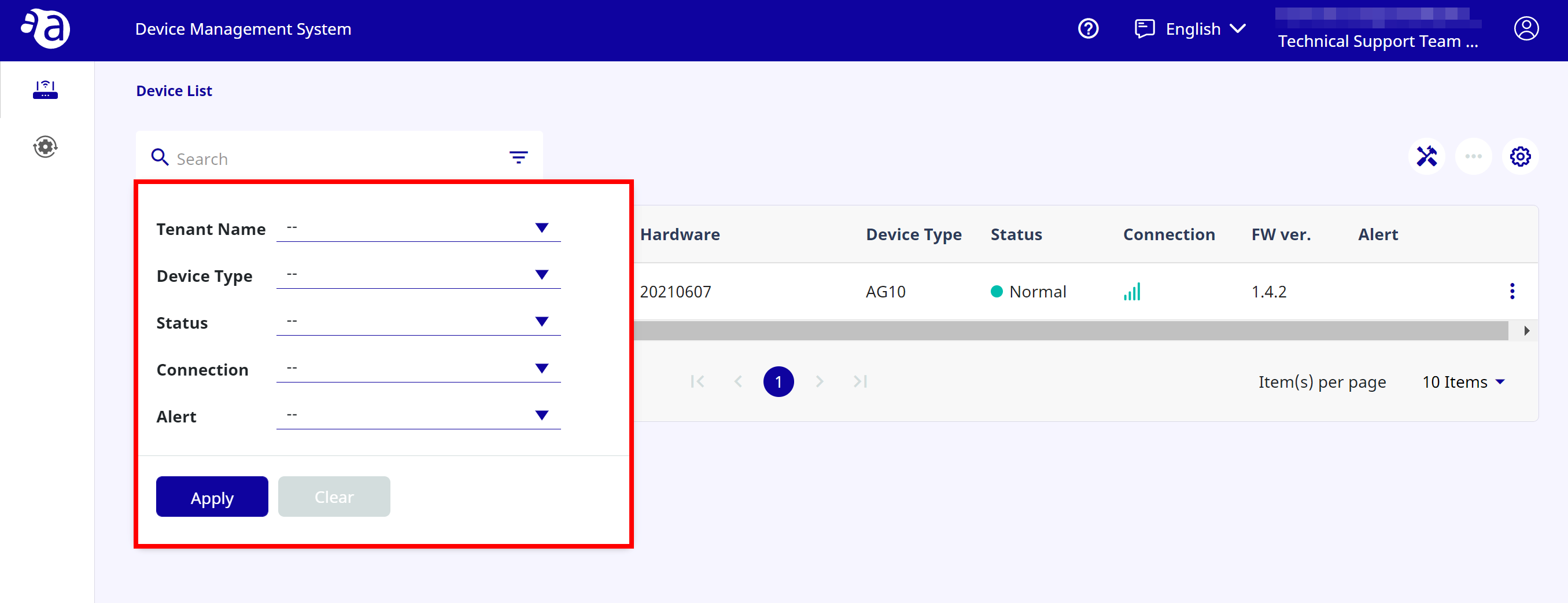
By setting conditions, the target devices can be searched.
-
In the [ Search ] field, enter a device name or a hardware ID.
-
If multiple conditions are set for the [ Device Type ], [ Status ], [ Connection ], and [ Alert ] fields, an OR search will be performed.
For example, if "Error " and "Normal
 " are set for the [ Status ] field, devices with "Status is Abnormal" or "Status is Normal" will be searched.
 -
If a condition is set in the multiple fields of [ Device Type ], [ Status ], [ Connection ], and [ Alert ], an AND search will be performed.
For example, if "Normal" is set for the [ Status ] field and "Normal " is set for the [ Connection ] field, devices with "Status is Normal" and "Connection is Normal" will be searched.
-
-
StatusStatus
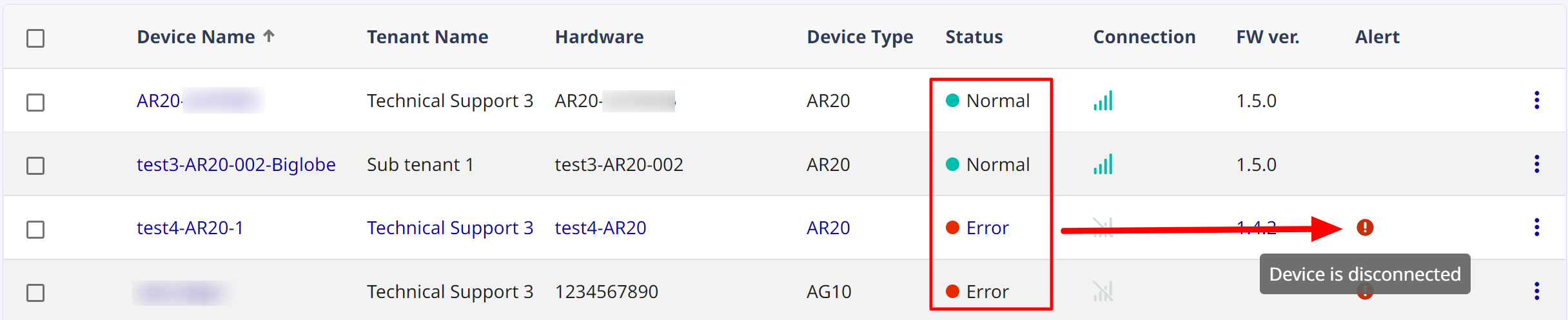
The status of the device will be displayed.
 Error
Error An abnormality is observed in the device. If an abnormality is displayed, check if an error message or a warning is displayed for [ Alert ]. (*)If the problem is not solved, please contact Support.  Normal
 The device is operating normally.  Ready
Ready The device is in preparation. If the device is still in preparation after a while, make sure that it has been powered on and connected to the Internet. *If you place the mouse cursor over the alert icon you want to check, its details will be displayed.
-
Device nameDevice name
The names of the devices belonging to the tenant will be displayed.

-
Tenant nameTenant name
The tenant name will be displayed.

-
ConnectionConnection
The connection status between the device and the cloud will be displayed.
 The connection between the device and the cloud is normal.
 The connection between the device and the cloud has not been established. Make sure that the device has been powered on and connected to the Internet.
-
AlertAlert
An alert will be displayed.
 This icon is displayed when the device is not communicating with the cloud or when the credentials for the VMS cannot be saved.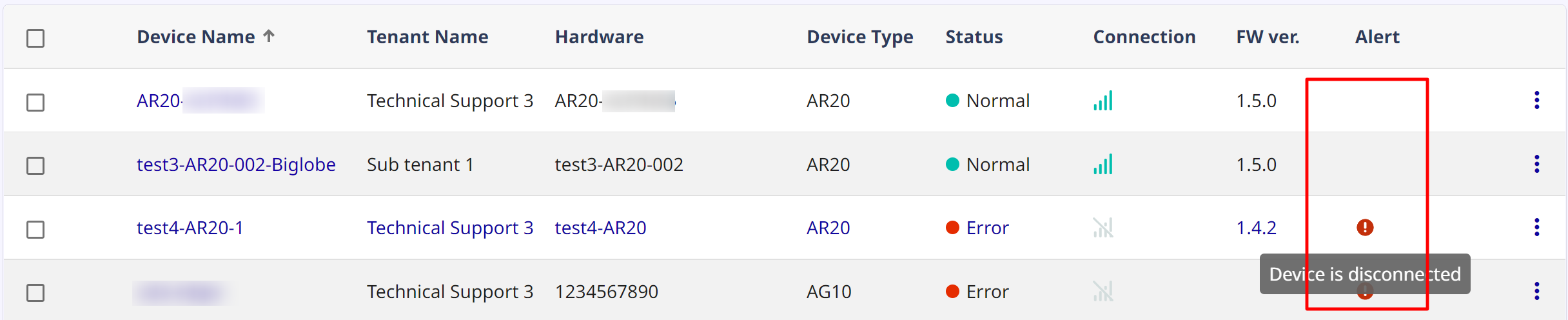
-
HardwareHardware
The hardware ID of the device will be displayed.

-
FW Ver.FW Ver.
The current firmware version of the device will be displayed.

-
Device typeDevice type
The device type will be displayed.

-
Export device listExport device list
From the export button, you can download a list of devices in CSV format.

All device lists will be downloaded, even if the search criteria are narrowed down.
